 Table of Contents
Table of Contents
Table of Contents
John Deere Machine Sync enables synchronized movement between compatible machines. Machine Sync utilizes AutoTrac to guide the follower to a home position set in relation to the leader. The follower maintains that position during operation. Machine Sync maintains in-line and lateral offsets between the leader and follower using information from StarFire Receivers. Information is transmitted wirelessly between machines using the modular telematics gateway (MTG) 4G LTE on each machine.
CAUTION: Machine Sync does not detect or avoid obstacles and bystanders. To prevent injury, remain alert and take control of the steering wheel to avoid collisions when necessary.
CAUTION: Machine Sync does not stop the follower completely. To prevent injury and avoid collisions when tracking behind the leader, remain alert and take control in case of sudden stops by the leader.
Verify that machine and implement information, including measurements and offsets, are correct and entered in the display.
NOTE: Before changing any AutoTrac or Machine Sync settings, write down current values.
Follower - Fine-tune AutoTrac forward steering adjustments for each machine individually before using Machine Sync.
Leader - Machine Sync operates with any available AutoTrac guidance method. Only the leader is required to select or create a guidance line.
NOTE: Machine Sync does not support curves greater than 0.5° per meter. If the leader is on a sharp curve or changes direction, the follower is unable to track, and Machine Sync disengages. When Machine Sync is disengaged, a tone followed by an alert explains why it disengaged.
NOTE: (combine leader only) While Machine Sync is in either the Acquiring or Tracking state, the leader is not able to shift guidance lines manually. Shift buttons are disabled while Machine Sync is engaged. RowSense shifts are not affected.
|
Once both machines are configured and Machine Sync is active, fine-tune the follower speed settings in the Machine Sync information and settings. |
|
Matching farm, field, operation, and crop type are required for coverage map sharing between machines in the network. The following features are available when Sharing is on and machines are in the same work group:
Operator name on the map
Automatically select leaders
Grain tank fill level icon
Unloading auger status icon
Network password sharing
Use the shortcut button in Machine Sync Information & Settings to quickly navigate to the Sharing application and enable In-Field Data Sharing for the best Machine Sync experience.
NOTE: If using JDLink Boost, when the leader and follower are within 50 m (55 yd) of each other, the MTG disconnects from the network. Machine Sync will continue to function, but connectivity functions requiring the network will be unavailable. Data is not lost but is sent to the host after the connection is re-established.
Shared signal is required to operate Machine Sync unless the following conditions are met on both the leader and follower:
Compatible receiver is used: StarFire 7000 or newer.
Correction mode is SF-RTK.
When turning the steering wheel to disengage Machine Sync, the follower set speed is changed to match the last known speed of the leader. To avoid or reduce the delay in having to reset the follower set speed every time Machine Sync is disengaged, the following disengagement methods are recommended:
In a tractor with a PST transmission, adjust the shift lever up, or select the Set Speed 1 or Set Speed 2 buttons that have a defined speed higher than the current speed, or scroll up on the speed adjustment wheel.
In a tractor with an IVT or EVT transmission with a linear lever, manually move the speed control lever from F1 position to F2 position, or use the speed adjustment wheel to increase the set speed.
In a tractor with an IVT or EVT transmission and a CommandPro lever, any motion of the handle, including rearward, will cause speed automation to exit.
|
Use the master toggle to enable or disable Machine Sync. |
ON / OFF |
NOTE: On leader machines, Machine Sync remains ON after key cycle.
On follower machines, if Machine Sync was enabled during the last key cycle, upon startup, the operator receives a prompt asking whether to keep Machine Sync enabled. The default state is ON.
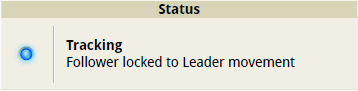
Status
Select Status to view Machine Sync status and requirements.
NOTE: If equipped, a second status for Auto Unload is also displayed.
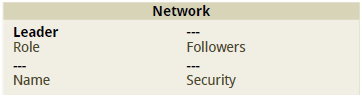
Network (leader only)
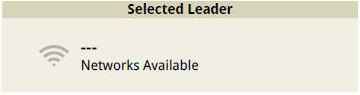
Selected Leader (follower only)
Leader - Select Network to edit network settings, such as the network name, password, and channel, or to select a network to connect to.
Follower - Displays the network that the follower is connected to or trying to connect to. Select the Selected Leader box to view available Machine Sync networks.
|
Grain Tank Fill Level - Displays the bin level of the leader. |
|
|
Unloading Auger Status - Displays when the leader is unloading the bin. |
|
|
Signal Strength - Displays the network signal strength. |
|
|
Password Alert - Displays when the network password is incorrect or missing. |
|
NOTE: Grain Tank Fill Level and Unloading Auger Status are available when using In-Field Data Sharing and require a cellular connection. Followers in the network can view these icons on the Selected Leader box or on the home page using the Machine Sync Leader List run page module.
NOTE: While a Remote Display Control (RDC) session is active, some Machine Sync functions, such as nudging, are disabled until the RDC session has ended.
Home Point
IMPORTANT: The default home point is based on settings in the Equipment Manager application and the operational zone shape. Before operating Machine Sync, verify that all machine and implement settings and offsets are correct.
The home point is the location relative to the leader where Machine Sync guides the follower.
NOTE: The user-defined home point is lost if the display is ever connected to a different machine, a different machine profile is selected, or another component is removed or replaced.
NOTE: Set Home Point button is only available when the follower is within the operational zone. The operational zone is marked on the map by a boundary.
NOTE: When using a U-shaped operational zone, the home point or home points automatically mirror on the other side of the machine when the follower moves to that side if the following conditions are met:
U-shaped operational zone enabled
Multiple home points ON
Controlled traffic ON
Single Home Point
|
To set a different home point from the default, select Set Home Point button. |
Set Home Point |
Multiple Home Points
|
To set a home point, select Set on the Set / Engage toggle, then select the number of the home point. The home point is set to the location of the follower. |
Set / Engage |
|
To change an active home point, select Engage on the Set / Engage toggle, then select the number of the home point. When AutoTrac is engaged, the follower tracks to the selected home point. |
Set / Engage |
Nudging
Machine Sync allows both the leader and follower to nudge the follower position to evenly distribute product into the unloading cart.
|
Nudge the follower forward. |
|
|
Nudge the follower backward. |
|
|
Nudge the follower left. |
|
|
Nudge the follower right. |
|
NOTE: Forward/backward nudges greater than 66 cm (26 in) trigger a tone and cause a brief transition from Tracking to Acquiring status.